
Phone and browser guide
ace365 mobile usage: browser, app introduction and troubleshooting
The first way to read ace365 information on the phone is Mobile Web. If you separate the browser page, menu, connection, and account state, a blank screen, incomplete list, or confusion related to the same name app can quickly be sent to the correct support branch.
What is Mobile Web
Mobile Web is a web page opened in the phone's browser. It is not an installed file; it works between the address bar, page title, browser controls, and website menu. Due to the small screen, the desktop's horizontal navigation menu button can go inside, the table can scroll beside, and images can load after text.
First read the page title and address, then open the menu and select the working page. Games, Login, Register, Mobile, and FAQ are separate destinations. If no account field opens, it is a Login issue; if the page text or menu does not appear, it may be a Mobile Web/connection issue.
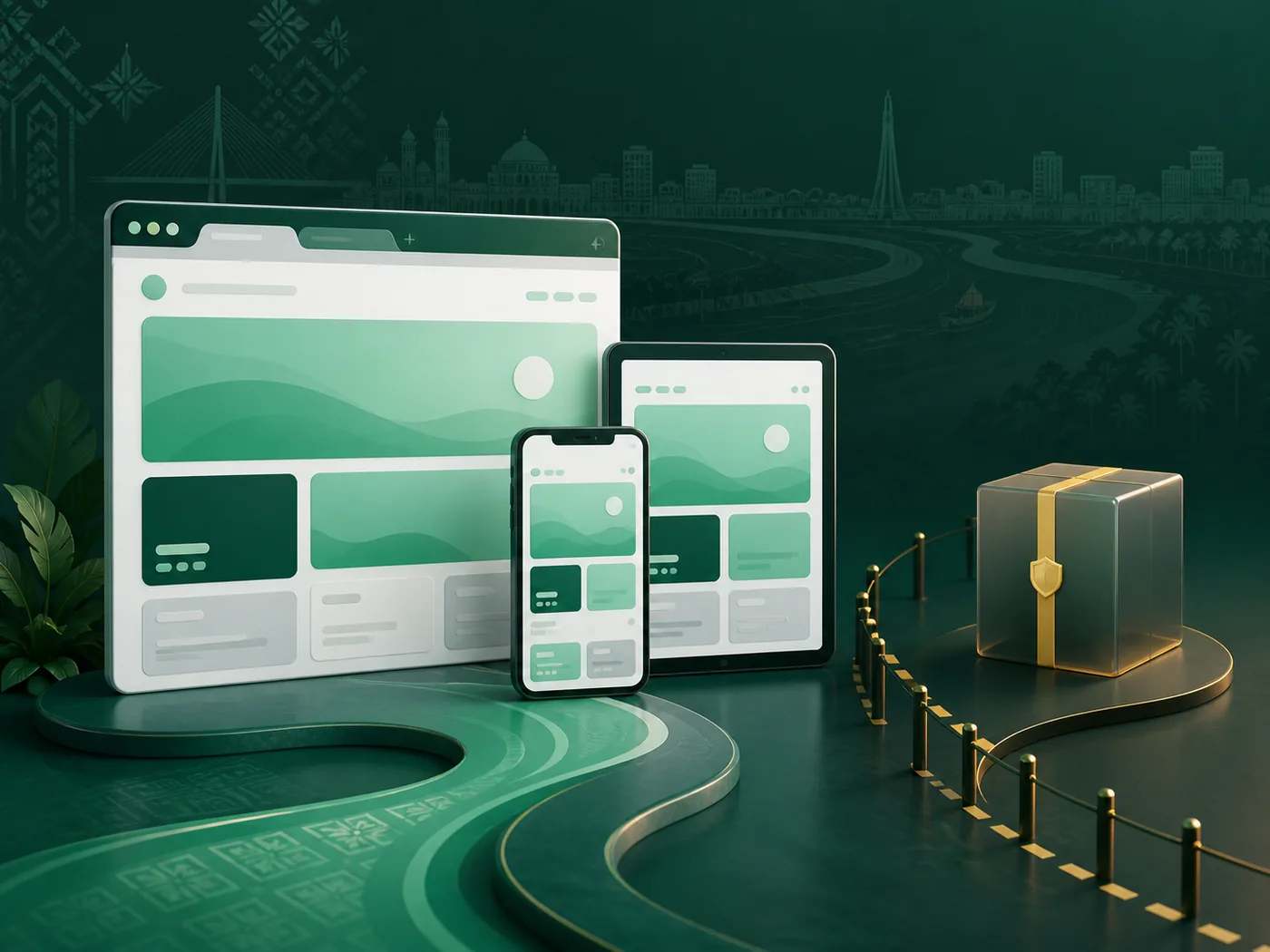
Main information path on the phone
- Address: Recognize the current page and path of the browser.
- Title: Match the task with Games, Login, Register, Mobile, or Help.
- Menu: Open the mobile menu and select a destination.
- Content: Read the heading and the first answer, then open the table or details.
- Status: Check if there is a visible message in the dynamic section.
- Next page: Only take relevant links to account, payment, or help branch.
What to do if the connection changes
If switching from Mobile data to Wi-Fi or vice versa, the previous connection state of the browser may remain for a while. Text has come but no image, there is a heading but no list, or the menu is working but the dynamic panel is stuck—these signs are different. Identify which part was last fully seen.
- Open a new internal page and check if the basic connection is working.
- Read the current page title and message, then reload once.
- Check if browser zoom, reader mode, or translation overlay content is covering.
- Distinguish whether the page itself is moving when scrolling beside the table, or if the table container is moving.
- Even if the login form is visible, if the submit action does not yield results, go to Account state.
Distinguish Apps with the same name
The identifiable listing of LPLUSRANG named ACE365 on Google Play is a Korean insurance claim service. Its description, publisher context, and function are not the same as this Bangladesh gaming topic. Seeing the same name in search results does not mean it is the same brand or service.
When verifying app identity, read not just the icon or name, but also the publisher, description, category, and function together. This information center explains the page and task of Mobile Web; it does not provide any app/APK download destination.
Account or Mobile issue
Mobile FAQ
Is installation needed to use Mobile Web?
No. Mobile Web is a way to read pages in the phone's browser.
Where is the menu?
On a small screen, it goes inside the main navigation menu button; open the button and take one task page at a time.
Text is available, image is not—what should I do?
Check if basic content is readable, stabilize the connection and reload once.
Is Google Play ACE365 a gaming App?
Identifiable LPLUSRANG listing insurance claim service; it is not the same entity as this gaming topic.
Which branch if the login button is not working?
If other parts of the page also stop, connection; when form response or identity message comes Account branch.
Where should I share more issues?
Mobile/App Help Take the next page according to the symptoms.